Page updated: 14 June 2026
Learn Lightroom: A Complete Beginner’s Path
New to Lightroom? This path walks you through the core tools in a calm, logical order — from understanding the catalog to importing, organising, and culling your photos with confidence.
ON THIS PAGE
Where to start with Lightroom

Lightroom can feel overwhelming if you expect it to behave like a normal file browser. It doesn’t. Lightroom keeps a separate “memory” of your photos — the catalog — and everything else builds on top of that.
This learning path gives you a simple, real‑world workflow. Work through the steps in order the first time, then return to any section as a reference.
1. Understand the Lightroom catalog
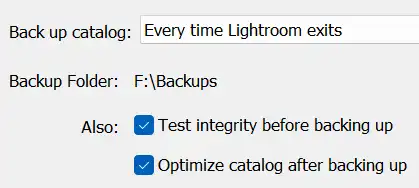
The catalog is the foundation of Lightroom. It doesn’t store your original photos — it stores your edits, ratings, flags, and the way you’ve organised everything.
In Understanding the Lightroom Catalog, you’ll learn what the catalog is, how Lightroom “remembers” your work, and why backing it up is essential.
2. Importing photos into Lightroom
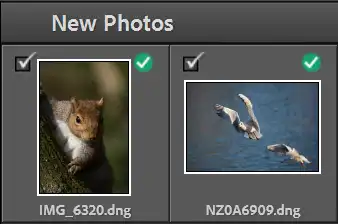
Importing is where many photographers accidentally create duplicates or messy folder structures. This step shows you how to bring photos into Lightroom cleanly and predictably.
See Importing Photos into Lightroom for a clear walkthrough of folders, file handling, and preview options.
3. Using Synchronize Folder
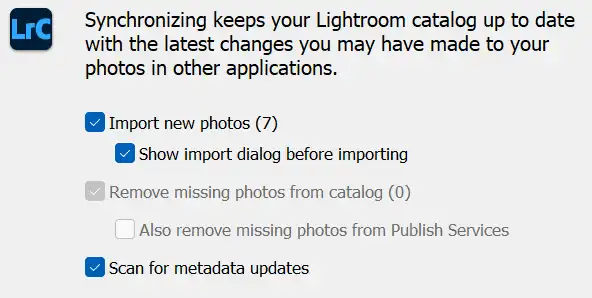
If you prefer to create folders yourself in Finder or File Explorer, Lightroom can “catch up” using Synchronize Folder.
In Importing Photos Using Synchronize Folder, you’ll learn how to add new folders, bring in new images, and avoid breaking existing links.
4. Organising photos in Lightroom

Good organisation means you can return to a shoot months or years later and still know exactly where everything is.
In Organising Photos in Lightroom, you’ll learn how to use folders, collections, flags, stars, and colour labels without overcomplicating your workflow.
5. Assisted Culling in Lightroom
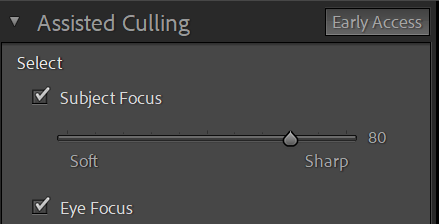
Assisted Culling uses AI to help you review and select your best images quickly, without taking control away from you.
See Assisted Culling Photos in Lightroom to learn how to compare images, confirm suggestions, and speed up your workflow.
6. Understand and Use the Lightroom Histogram
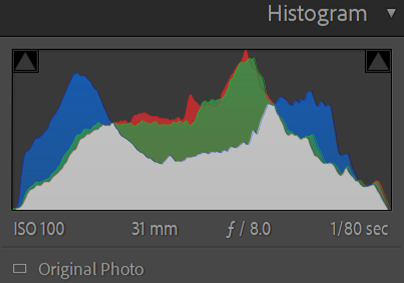
Histograms are used everywhere in photography - on cameras, in Lightroom, and in Photoshop - because they reveal information that isn’t always obvious just by looking at the image. Lightrooms Histogram is interactive. Learn how it can help your editing.
What to do next
Once you’re comfortable with the catalog, importing, organising, and culling, you’re ready to move into editing, masking, and colour work.
Treat this page as your Lightroom home base. Bookmark it and return whenever you need a refresher or Lightroom changes after an update.
