Page updated: 14 June 2026
Understanding the Lightroom Catalog
Understanding How the Lightroom Catalog Stores and Organises Your Photos
The Lightroom catalog is the part most beginners find confusing. It’s easy to assume Lightroom “contains” your photos, or that importing means copying everything into some hidden Adobe folder. That isn’t how it works. This page explains, in plain language, what the catalog is, what it stores, and how it relates to the actual photo files on your drives.
ON THIS PAGE
1. What the Lightroom catalog is
The Lightroom catalog is a single database file with the extension .lrcat. It does not contain your photos. Instead, it records every photo you’ve imported, where it lives on your drives, and everything you’ve done to it inside Lightroom. Think of it as Lightroom’s memory.
2. What the catalog stores
For each photo, the catalog stores:
- File location: the exact folder and drive where the photo is stored.
- Edits: every adjustment you make, from exposure to cropping.
- Flags, stars, and colour labels: your culling and rating decisions.
- Keywords and metadata: names, places, subjects, copyright, and more.
- Collections and virtual copies: how you group and reuse photos.
- History: the steps you took while editing.
All of this is stored as text instructions, not as new image files. This is what makes Lightroom non-destructive.
3. What the catalog does not store
The catalog does not store the actual image data. Your RAW files, JPEGs, AVIF, PSD, and TIFFs remain in the folders where you put them. The catalog also doesn’t store exported versions of your photos. When you export a JPEG for a client, that file is saved wherever you choose on your drive — not inside the catalog.
4. Where the catalog lives
By default, Lightroom creates the catalog in your Pictures folder. You can choose a different location when creating a new catalog, and you can move an existing catalog if needed. For best performance, keep the catalog on a fast internal drive rather than an external USB drive.
The catalog file usually sits alongside a few support folders (such as previews). These can be large, but they are still separate from your original photos.
5. How the catalog relates to your folders
Lightroom never “owns” your folder structure. It simply displays the folders that already exist on your drives. When you move or rename folders inside Lightroom, it updates both the catalog and the real folders on disk. When you move or rename folders outside Lightroom (using Finder or File Explorer), Lightroom loses track and shows a “missing folder” until you relink it.
A simple, reliable approach is:
- Decide on a clear folder structure: for example, by year and shoot.
- Let Lightroom manage moves and renames: do them from the Folders panel.
- Keep photos and catalog on known, backed-up drives: avoid guessing later.
- If you add images to a folder outside Lightroom, synchronise that folder.
6. Backing up the catalog
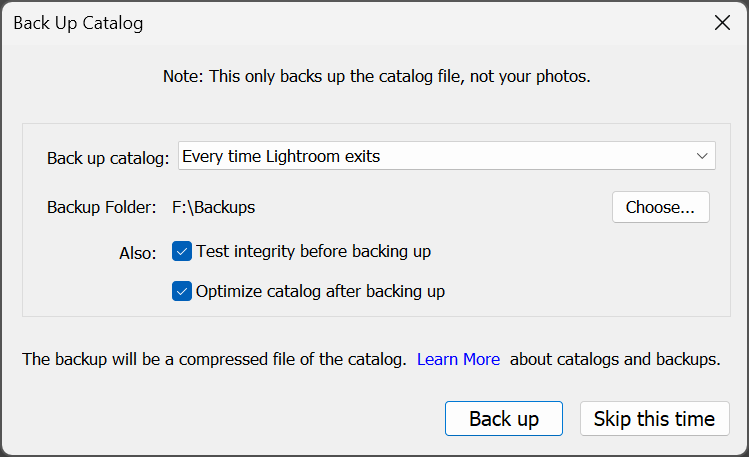
Because the catalog contains all your edits and organisation, it’s important to back it up. Lightroom can create automatic catalog backups on a schedule you choose. These backups are small compared to your photo library and are worth keeping.
A complete backup strategy should include:
- Your photos: the folders where your RAW and other photo formats live.
- Your catalog: the .lrcat file and its backups.
7. Every time you close Lightroom
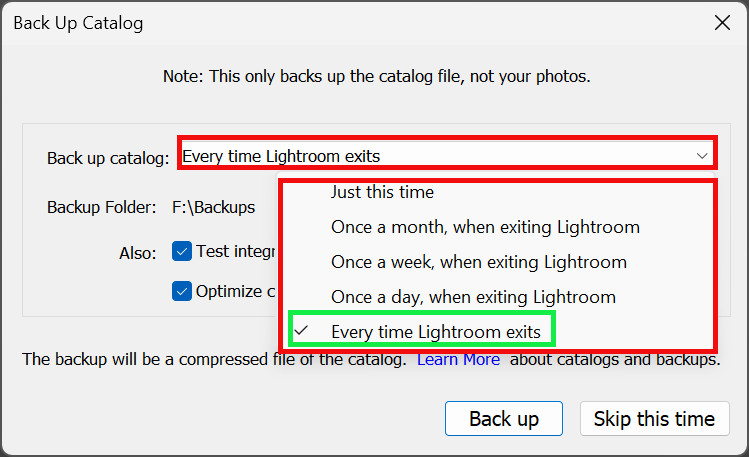
Each time you close Lightroom, you can choose how often Lightroom prompts you to back up your catalog.
There are five options:
- Just this time
- Once a month, when exiting Lightroom
- Once a week, when exiting Lightroom
- Once a day, when exiting Lightroom
- Every time Lightroom exits
I recommend setting this to Every time Lightroom exits. You can always click Skip this time if you haven’t done anything worth backing up.
8. Backup strategy

File Explorer shows my last five backup files. I generally keep the most recent three, deleting older ones periodically.
I then run a backup to create copies of these on an external drive. I rotate between three external drives for safety.
When backing up to external drives, I also back up my actual photos.
9. External backups
If you lose the catalog but still have your photos, you can re-import them — but you will lose your edits, ratings, and collections. Keeping catalog backups prevents this.
It’s essential to back up both your photos and the Lightroom catalog. These should be stored on external drives or in the cloud.
10. Common beginner mistakes
Most Lightroom problems come from misunderstandings about the catalog. Here are a few to avoid:
- Deleting photos outside Lightroom: this leaves broken links in the catalog.
- Moving folders in Finder/File Explorer: Lightroom then shows “missing” folders.
- Assuming Lightroom stores the photos: it doesn’t — your drives still matter.
- Ignoring catalog backups: losing the catalog means losing your edit history.
Once you see the catalog as Lightroom’s memory — separate from your actual photo files — the whole system becomes much easier to trust and work with.
Summary of Lightroom Catalog
The Lightroom catalog is Lightroom’s memory. It doesn’t store your photos — it stores everything about them. The catalog remembers where each photo lives on your drives, every edit you make, your flags and ratings, your keywords, and the collections you build.
Because the catalog contains all your creative work, it’s essential to keep it safe. A complete backup strategy always includes two things:
- 1. The catalog itself
- 2. The folders where your photos are stored
If you lose the catalog, you still have the photos — but you lose your edits, organisation, and history. If you lose the photos, the catalog can’t bring them back.
Backing up both the catalog and your photo folders keeps your entire Lightroom world protected, predictable, and easy to restore if anything goes wrong.
