Page updated: 19 June 2026
Photoshop Image Size
Photoshop Image Size Explained
The Image Size panel in Photoshop controls the pixel dimensions, print size, and resolution of your image. Understanding how these three elements work together is essential for resizing images correctly, preparing files for print, exporting for the web, and avoiding quality loss.
This tutorial explains what Image Size really means, how resolution affects print but not screens, how to resize images without distortion, and how Image Size differs from Canvas Size. Each section includes examples and screenshots to make the concepts clear and easy to follow.
If you’ve ever been confused by pixels, inches, centimetres, PPI, DPI, or the Resample checkbox, this guide will make everything simple.
ON THIS PAGE
What is Image Size?
Image size is the size of the image, measured in pixels.
It can also be referred to in terms of measurement, such as centimetres or inches and when doing so, it's important to also know the resolution, i.e. how many pixels per cm or inch. Resolution is important when printing, but not so important for images displayed on a screen.
Image size can be confusing, so let's look at an example image that is 600x600px. (PPI = pixels per inch). Displayed on a screen the image would be 600x600px in all cases.
- If the resolution is 300ppi the image (if printed) would be 2x2 inches.
- If the resolution is 600ppi the image (if printed) would be 1x1 inch.
- If the resolution is 60ppi the image (if printed) would be 10x10 inches.
- If the resolution is 100ppi the image (if printed) would be 6x6 inches.
Resolution is only relevant when printing. If displayed on a screen, the image would still be 600x600px If printed, there would be a difference as printers work in dpi (dots per inch).
PPI and DPI are often used to refer to the same thing, but they are different. PPI (pixels per inch) is the image resolution. DPI (dots per inch) is the measurement of the resolution of an image or printer, indicating how many individual dots of ink are placed within a single inch.
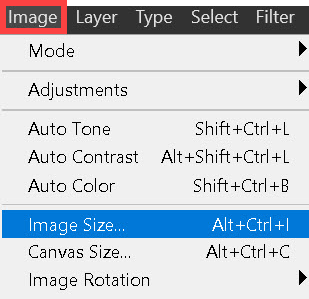
Menu: Image > Image Size
Access Image Size from the menu: Image > Image Size
Image Size vs Canvas Size
The image size (or pixel dimensions) determines the actual dimensions of your image, while the canvas size dictates the overall workspace, including any surrounding borders or transparent areas.
For more information see Canvas Size.
Image Size and Resolution
If you do not Resample an image, using Image Resize, changing the resolution will not change the size of the image.
Dimensions in centimeters at 72ppi. Image size 3000x2053px
Dimensions in inches at 72ppi. Image size 3000x2053px
Access Image Size from the menu: Image > Image Size
Photoshop Default Resolution
Photoshop's default resolution for all new documents (except for screen) is 300ppi. This is the industry standard for printing. The default resolution for a new document for the Web is 72ppi.
But the thing is, that if you have a document with a resolution of 300ppi for the web, the important factor is the overall dimensions in pixels. An image 1000px wide will be the same whether it is at 300ppi or 72ppi.

300ppi is the default resolution for print.
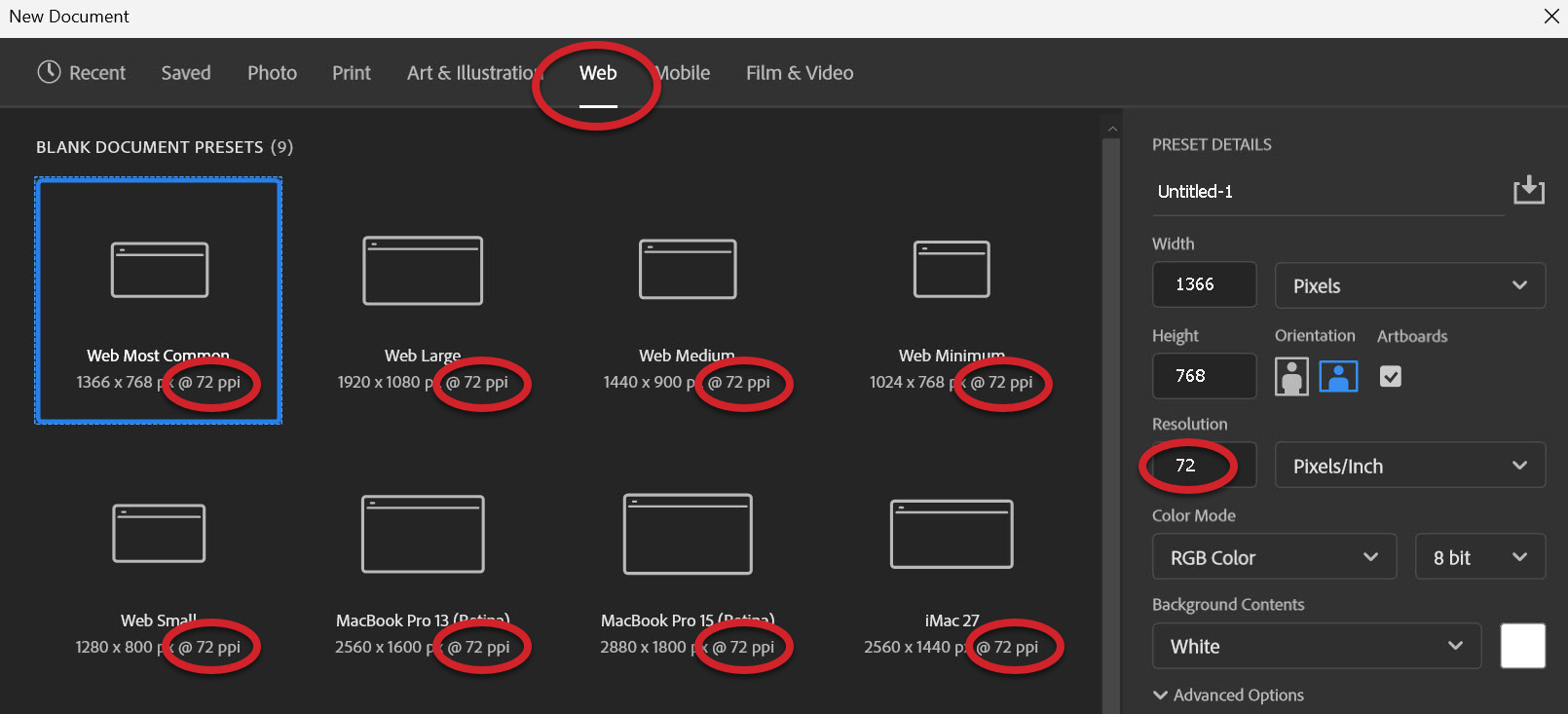
72ppi is the default resolution for Web.
Access Image Size from the menu: Image > Image Size
The Image Size Panel
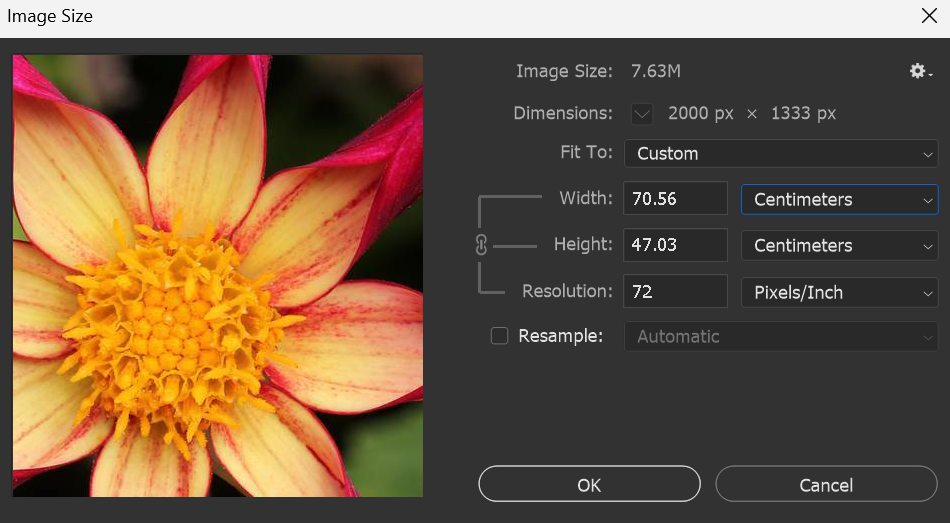
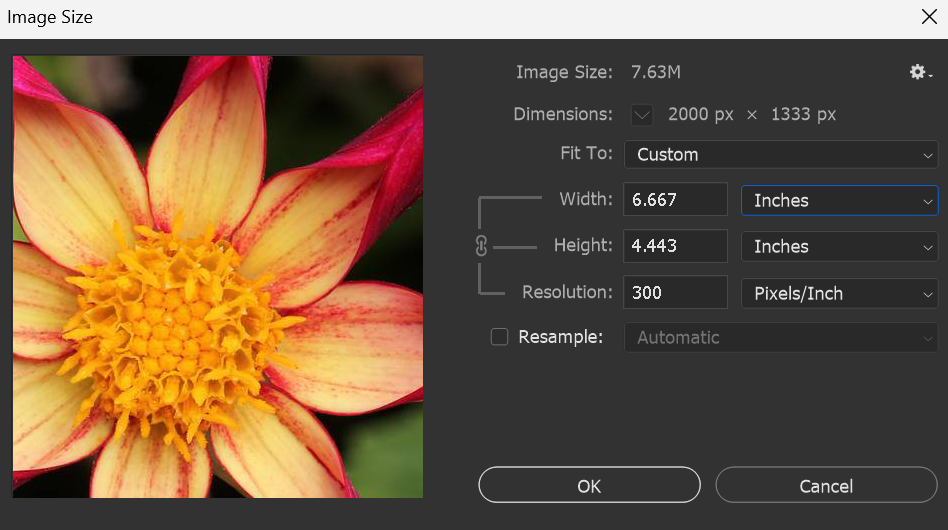
In all 3 of the screenshots below the image is the same size, i.e. 2000x1333px. The differences are that the image is displayed firstly in centimeters @ 72ppi, (pixels per inch), then in centimeters at 300ppi, then in inches at 300ppi. The Resample box is not ticked, so changing any of these options does not make any changes to image size.
To change the image size you must tick the Resample box.
2000x1333px, size in cm @ 72ppi
The Resample box is unticked, so changing options will not result in changing the image size.
The image size is shown in centimeters @ 72ppi.
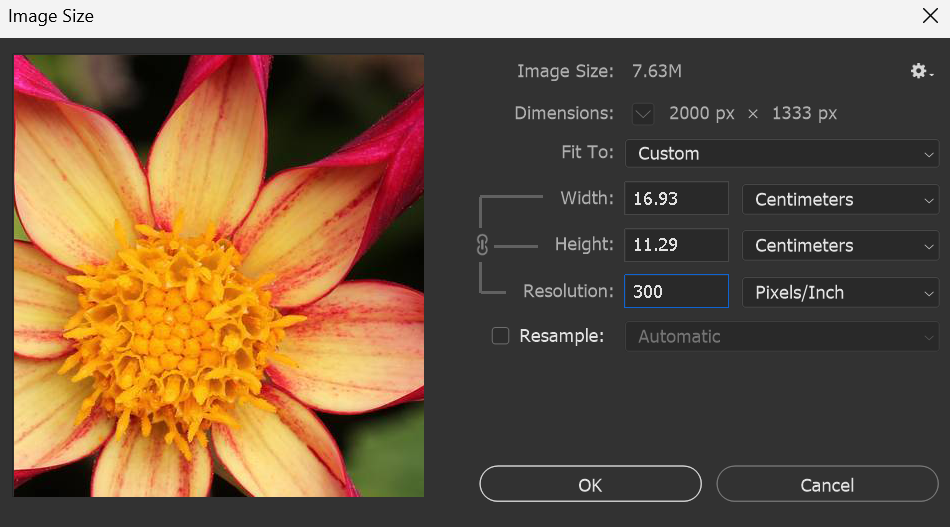
2000x1333px, size in centimeters @ 300ppi
With the Resample box unticked, changing the resolution to 300ppi does not result in a change of image size.
2000x1333px, size in inches @ 300ppi
Changing the measurement option to inches does not result in a change of image size, because the Resample box is not ticked.