Page updated: 21 July 2026
Photoshop Selection Tools
The Complete Guide to Making Accurate Selections in Photoshop
A selection allows you to make a selection of part of a photo. You can then make adjustments to just that part of the photo, or move an object within a photo.
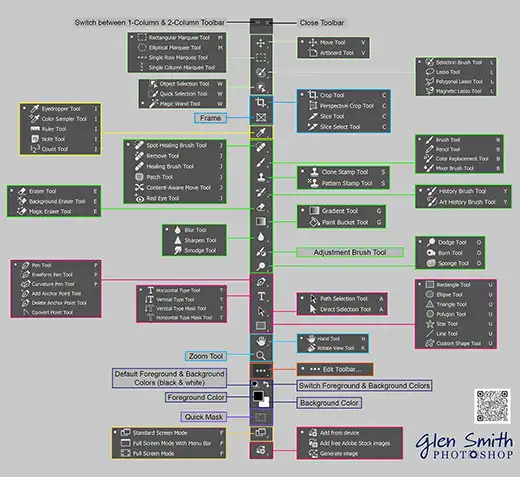
Making quality selections of objects is a large and important part of Photoshop and image editing. There are many tools available, as shown below. Some are actual “selection” tools, while others are tools that are indispensable in the process of using and refining selections, such as Layer Masks and Foreground & Background Colors. Then there are tools that are not selection tools, but can also be used to make selections, such as the Pen Tool.
When making a selection, it’s important to make a high‑quality selection so your editing seamlessly blends into the final image.
Three Great Selection Tools
These three selection tools, either independently or used in combination, will create good quality selections of most objects, most of the time. If a selections involves hair, fur, or soft or blurred edges, you will usually benefit greatly by also using Select and Mask, to produce a quality selection. There will also be times when you will benefit by using Transform Selection, as in this tutorial to rotate a wheel that isn't perfectly round.
These three selection tools each do things the others can’t. They are all good in their own right and often work well on their own. But sometimes they benefit by being used with one or more of the tools listed here, to achieve a high quality selection, that will enhance your image, rather than be noticeable and then detract from it. It always depends on the image and object.

This is the selection tool to try first. It automatically selects objects or skies and it usually does a good job and sometimes does an amazing job. But it’s not perfect and the quality of the result will depend on the image and the chosen area. But it's usually a good starting point. You can often improve and refine the selection with other tools, or use another tool entirely, if it’s clear that it just can’t select a particular object.

Before the Object Selection Tool existed ( CC 2020), this was my go‑to selection tool. This is a great tool to either make a selection from scratch, or to refine a selection made with the Object Selection tool. You can often achieve a better quality selection than the Object Selection Tool, although it takes longer and requires good technique and settings. In classrooms I've seen many beginners use the tool incorrectly and then struggle. But it’s not difficult to use for great quality selections and I still use it a lot. But it does require an awareness of the process.

This can achieve a higher quality selection of areas such as skies, especially when some sky is visible through branches of trees. It takes longer than the Object Selection Tool and requires good use and awareness of settings and technique. Used correctly, it can produce excellent results of subject that the Object Selection and Quick Selection tools can't cope with.
Other Selection Tools

The Adjustment Brush aims to make it easy and intuitive to make adjustments to part of your image, simplifying the workflow by combining the techniques of making a selection and then applying these to an Adjustment Layer and Layer Mask, which are both essential Photoshop tools.
However, be aware that initially the adjustments are applied with “default values” and you will probably need to adjust these.

A basic selection tool that is used freehand to draw around areas to be selected. Not useful in selecting objects, but useful to remove unwanted areas from a selection, if they are non‑contiguous.

This tool draws straight lines and is useful where there are straight edges to select. The Pen tool can also create straight lines, but this tool is quicker and simpler to use.

This tool attempts to find edges as you brush along them. With todays excellent selection tools, the Magnetic Lasso is now less valuable than it use to be.
Select Sky
Available in the Select menu, this automatically selects skies. It produces similar results to the Object Selection tool when used on skies and it generally does a good job. The quality of results will depend upon the image, but is not perfect at selecting areas of sky within branches of trees. For those situations, you may be better off with the Magic Wand.
Select Subject
Available in the Select menu, this automatically selects subjects. It generally does a very good job, but sometimes selections are not perfect and will need refining. Very similar results to the Object Selection tool.

This tool creates selections of squares and rectangles and you can have a hard edge, or soften the edge. It often benefits by being fine‑tuned with Transform Selection.

This tool creates selections of circles and ellipses, which can then be fine‑tuned with Transform Selection. This can be useful in cases where you are selecting round objects, such as wheels, in areas in an image that makes it impossible for other tools to make a perfect selection. See this example of selecting a wheel.
Other Tools Used With Selections
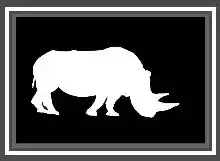
Layer Masks are one of the most useful and powerful of tools that you will use when making and refining selections. They are an essential part of Photoshop and there are several tutorials on this site - search for Layer Masks. An important part of working effectively with Layer Masks, are Foreground and Background Colors, in the next segment.

Foreground and Background Colors are an integral part of working with Layer Masks and are a major tool in working with selections.
This is a very useful and powerful tool. It's a mini program within Photoshop, with its own set of tools and options. It's great for refining selections that include hair, fur, or any soft or blurred edges. It can also be used to achieve better selections of smooth objects.
Color Range is a lesser known tool for making selections, but when you want to select colors, it can be excellent. See this tutorial on selecting poppies at the Tower of London.

The Pen tool is not classified as a selection tool, but it can be used to make a path that can easily be changed into a selection of objects with curves and/or straight edges.

The Freeform Pen tool is not classified as a selection tool, but it can be used to make selections of objects with curves.

The Curvature Pen tool is not classified as a selection tool, but it can be used to make selections of objects with curves.

The Content Aware Tracing tool is not classified as a selection tool, but it can be used to make selections of objects with curves.
Tools to Edit Selections

Not a selection tool, but it allows you to transform and fine tune a selection you have already made. See this example of selecting a wheel.
Not a selection tool, but it allows you to transform and fine tune a selection you have already made.
Not a selection tool, but it allows you to transform and fine tune a selection you have already made.
Not a selection tool, but it allows you to transform and fine tune a selection you have already made.
Other Tools

Not a selection tool, but it does make selections of text. You can create interesting effects within an image.

Selects only a row or column one pixel wide, so they have limited usefulness.