Page updated: 18 July 2026
Interactive Photoshop Toolbar PDF (2026)
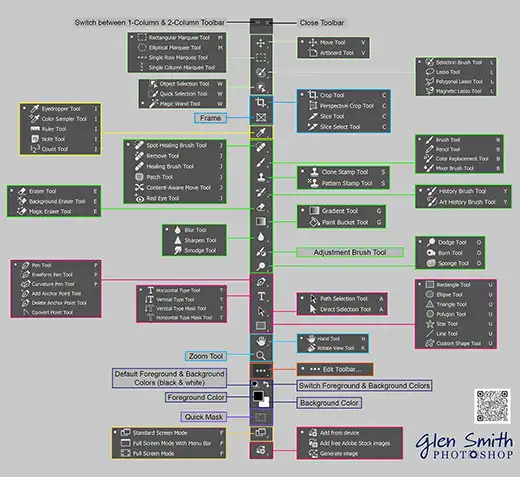
Preview and download available on the Tools page.
Gradient Tool
There are two Gradient Tools; Gradient and Gradient Classic.
Gradient Classic is the old tool that existed prior to 2023 when the Gradient Tool received a major improvement. I strongly recommend you use the newer Gradient tool and that is covered below.
For a guide on using the older Gradient Classic Tool, please see Gradient Classic.
The Gradient Tool received a significant upgrade in 2023 and now edits non-destructively, adding an Adjustment Layer to the image. It also gives a live preview as you create the gradient. This is a huge advantage over the old tool, Gradient Classic, which edits destructively and doesn't give you a live preview.
It's a big advantage, whenever you can, to edit non-destructively, because this gives you the flexibility to infinitely edit the Gradient in many ways.
For more details see Destructive vs Non-Destructive Editing.
The Gradient Tool works completely differently to all the other tools and has several uses. You can use it to create patterns using colors, or create a smoothly graduated effect, for example to darken a sky. You can also create a smooth graduation from visible to transparent.

Gradient Tool Options

Tap to view full size
Rotate your phone for easier reading
ON THIS PAGE
How to Create a Diamond Gradient
This is an example of a Diamond Gradient. Click and drag the different controls, as shown above, to adjust the Gradient.
1. Select Diamond Gradient
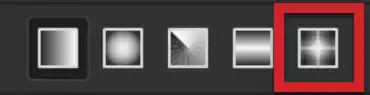
If you don't have a Gradient selected, click on the Diamond Gradient button on the Options bar. This will create a new Gradient.
If you have an existing Gradient selected, double click the Gradient Adjustment Layer thumbnail to open the Properties panel, then select the Diamond Gradient.
2. Gradient Controls
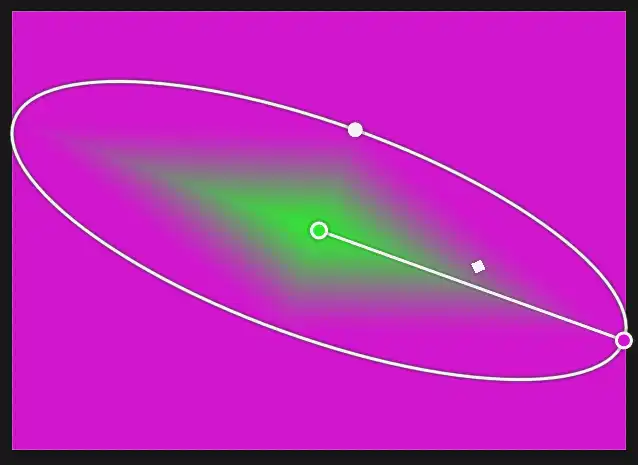
This is an example of a Reflected Gradient. Click and drag the different controls, as shown above, to adjust the Gradient.
3. Reflected Gradient Example
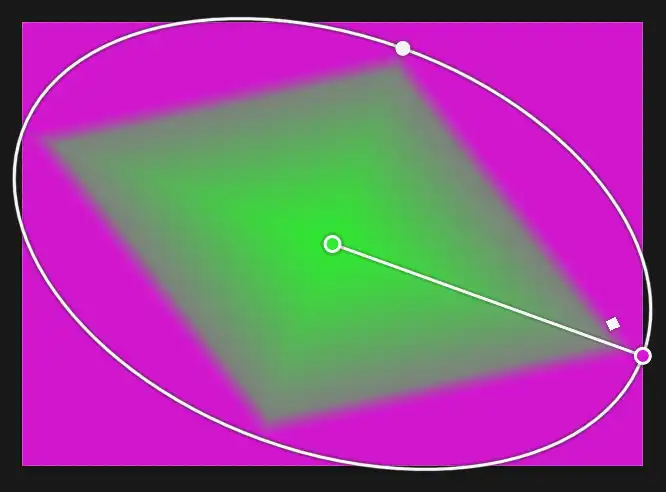
This is an example of a Reflected Gradient. Click and drag the different controls, as shown above, to adjust the Gradient.
Summary of the Gradient Tool
The Gradient Tool can be used in two ways. Classic Gradient creates a gradient directly on the layer pixels and is therefore destructive. If this is not specifically your aim, then I recommend using the Gradient tool, which creates an Adjustment Layer, that can be edited and many options changed. Adjustment Layers are non-destructive and give you much greater flexibility to edit your image.
For more details see Destructive vs Non-Destructive Editing.