Page updated: 14 June 2026
How to Use People View in Lightroom Classic
A clear, practical guide to Lightroom’s face‑recognition tools — how to name, merge, organize and manage people across your entire photo library.
People View is Lightroom’s face‑recognition system, designed to help you organize photos by the people who appear in them. Instead of manually tagging faces across hundreds or thousands of images, Lightroom scans your library, groups similar faces together, and lets you name individuals with a single click.
Once trained, it becomes a powerful way to track recurring people across weddings, events, family sessions, or long‑term personal archives. People View isn’t just another way of looking at your images — it’s a dedicated workflow with its own tools, behaviors, and learning model. This tutorial walks you through how it works, how to train it, and how to use it confidently without cluttering your catalog or losing control of your metadata.
What You’ll Learn
- How People View works and why it behaves differently from the other Library Views
- How Lightroom detects and groups faces, and what affects accuracy
- How to name people correctly and train Lightroom to recognize them reliably
- How to merge duplicate people and clean up messy or inconsistent groups
- How to review and correct matches, including removing wrong faces and adding missed ones
- How to hide faces you don’t want tracked, such as strangers or background subjects
- How to improve Lightroom’s recognition over time so it becomes faster and more accurate
- What People View can and can’t do and things to note.
ON THIS PAGE
People View
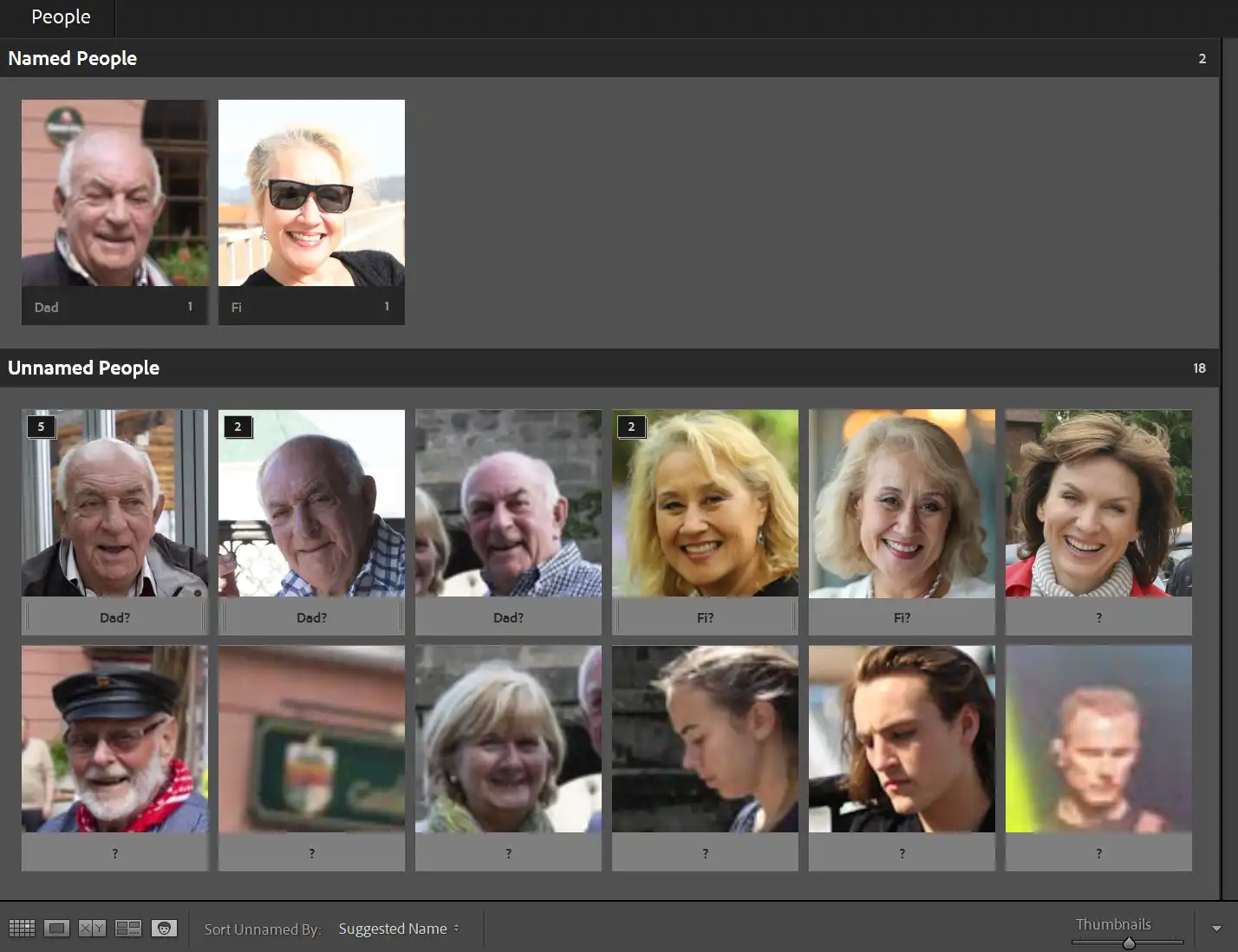 People View showing named and unnamed people
Click to view larger
When you open People View, Lightroom begins analyzing your images and presents clusters of faces it thinks belong to the same person. You can name a group, accept or reject suggestions, and tidy up the results as you go. The more feedback you give Lightroom, the smarter and more accurate it becomes.
Once trained, People View becomes a fast way to locate images of specific people, build person‑based Collections, and keep large libraries organized without manually tagging every photo.
People View is one of Lightroom’s five Library Views. If you need a refresher on Grid, Loupe, Compare or Survey View, I’ve covered those separately — along with a general overview of People View. This tutorial focuses solely on People View and its face‑recognition workflow.
Getting Started
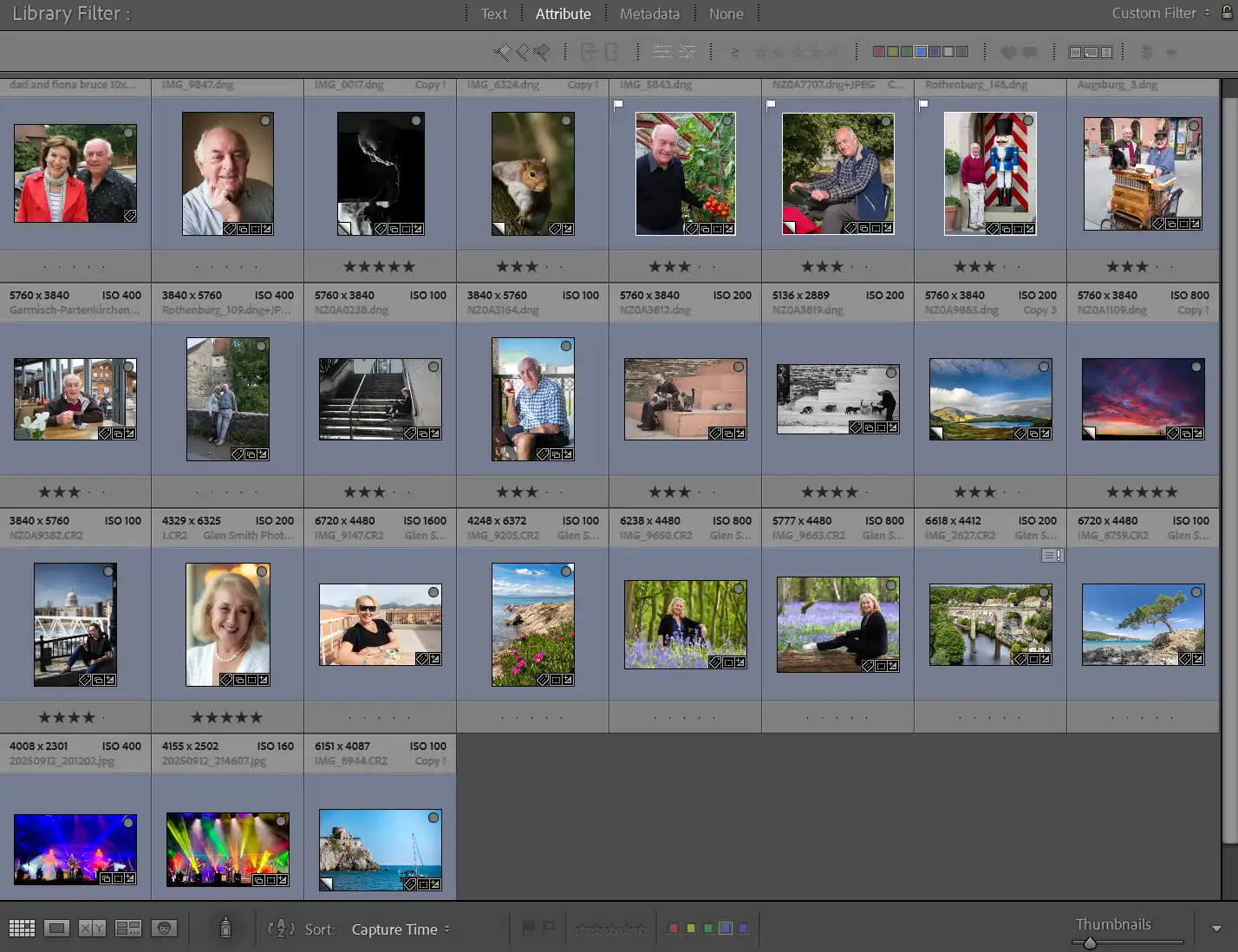 Grid View including images of people
Click to view larger
Open People View and allow Lightroom to scan your library. You’ll see groups of unnamed faces that Lightroom believes belong to the same person. Early results may be rough, but they improve quickly as you begin naming people.
People View automatically detects faces in your photos, groups similar faces together, and helps you identify individuals across your entire library.
The screenshot shows Grid View, with a variety of photos, some with people and some without people. Simply switching to Library View, automatically begins Lightroom scanning for any photos it finds that contain people.
Faces Automatically Found
People automatically found
Click to view larger
This screenshot shows the people Lightroom has automatically found from the photos shown in the first screenshot.
Lightroom scans your images for facial features and shows all the faces it has identified. If there is a photo two recognizable people, it will show them as two images, so you can name each person.
The images are arranged with similar faces together. The first three here are my Dad. It has named them as "Dad" because I have previously named him in other images, as shown in the top row.
Accuracy improves as you confirm or deny matches, because Lightroom learns from your decisions and refines its model over time.
Naming People


Click a face and type a name to identify the person. Or you can select multiple images and type a name once and Lightroom will apply that name to all the selected images.
When you add images in the future, it will suggest the same name. Consistent naming helps keep your library organized.
Duplicate People

Lightroom often detects the same person more than once, especially if their appearance changes between photos, or the light is different. You can tidy this up by merging duplicates.
In this screenshot, there are two new photos that Lightroom labels as Dad?. They can easily and quickly be added to Dad in the Named People.
Look for two (or more) faces that clearly belong to the same person. They can be next to each other, or among other faces.
Merging Duplicate People
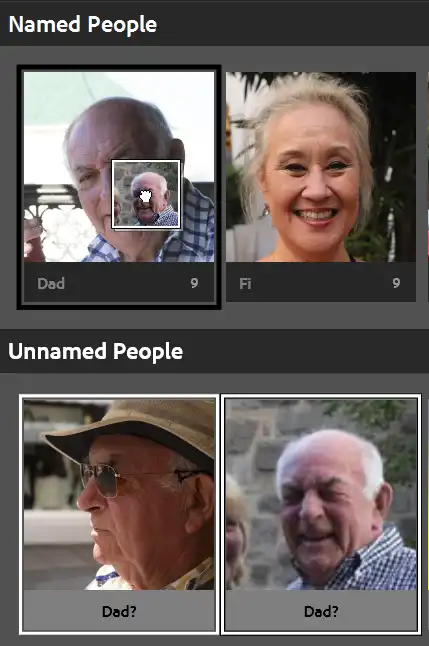
Highlight the photos by Ctrl-click (Windows) or Cmd-click (Mac) to select all the thumbnails of that person.
Click and drag the thumbnails onto the named person.
Lightroom combines them into a single person record, keeping all tagged photos together.
Why this matters
- Keeps your People View clean and accurate.
- Prevents the same person appearing under multiple names.
- Helps Lightroom improve future face recognition.
Reviewing Matches

The screenshot shows 3 faces and Lightroom has marked them as Andy? but all 3 photos are not of Andy.
Correcting Matches
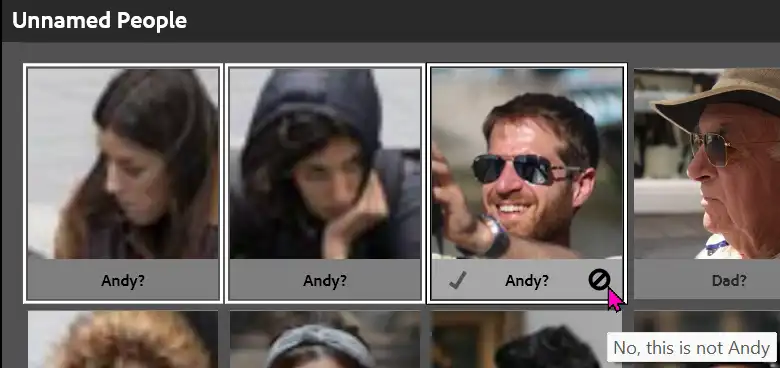
Highlight the photos by Ctrl-click (Windows) or Cmd-click (Mac) to select all the thumbnails.
Move the cursor over the bottom of one on the thumbnails and click on the No Entry sign. Lightroom will signal "No, this is not Andy".
Correcting Matches
After you have clicked "No, this is not..." then move the cursor over it again and it will say "Delete this face region".
Click the X to delete those faces.
Hiding Unwanted Faces
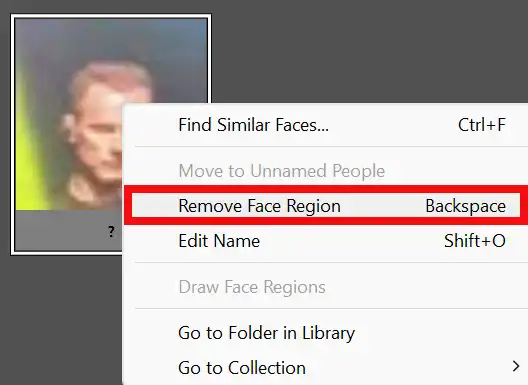
You can hide faces you don’t want Lightroom to track, such as strangers, background subjects, or partial faces. These can clutter People View and make it harder to focus on the people who matter. You can quickly hide these unwanted faces so they don’t appear in your main People grid.
In People View, select any face you don’t want to keep, then right-click and choose Remove Face Region, press Backspace. Lightroom removes that face from the visible People list, but the underlying photos stay in your catalog. This keeps your People View clean and focused, without deleting any images or losing work.
Not All Faces are Identified
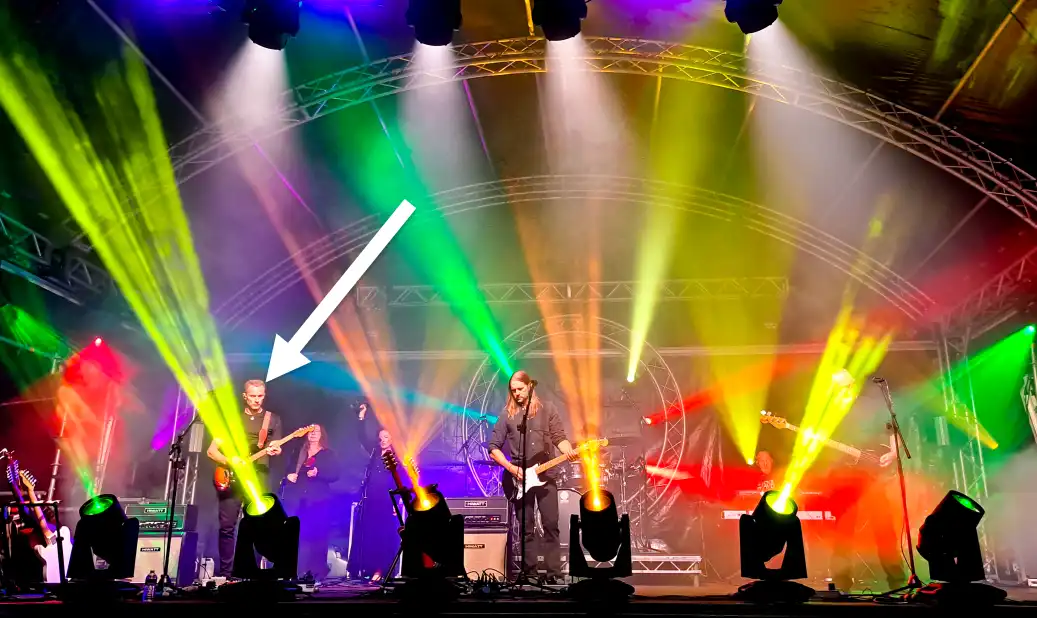

People View will not pick out every face in every photo, if the faces are indistinct.
The shot of the band includes several faces, but the only one People View selected, is indicated by the white arrow and shown in close-up. The person in the middle of the image is not noticed and the other faces are even more indistinct and are not noticed.
Improving Accuracy Over Time
Lightroom becomes significantly more accurate as you confirm names and correct mistakes. After 20–30 confirmed images per person, recognition improves dramatically, especially for recurring subjects.
Limitations and Things to Know
If a folder contains a large number of photos, People View can take quite a time to scan for faces. Large catalogs can take a long time to scan and update.
People View data is stored only in the catalog, not in XMP sidecar files.
People View will not find every face, although it should do a good job when faces are well lit, in focus and reasonably prominent in the photo.
Accuracy varies with lighting, angles, and obstructions.
Summary
Lightroom’s People View is a powerful way to organist and identify the people in your photo library, but it’s important to understand its strengths and limitations. The face‑detection system doesn’t find every face, and it can take a long time to scan a large collection, especially if you’re working with years of images.
Accuracy varies depending on lighting, angles, facial size in the frame, and how clearly the person is visible. Background faces, partial profiles, or low‑light images may be missed or misidentified. You can improve results by confirming names, merging duplicates, and hiding unwanted faces to keep the view clean.
Alongside face recognition, keywords remain an effective tool for organizing people—especially for group shots, events, or situations where Lightroom struggles to detect faces. Combining People View with well‑structured keywords gives you a flexible, reliable way to manage and search your photo library.
