Page updated: 14 June 2026
Importing Photos into Lightroom Using Synchronize Folder
A simple workflow for adding new photos into Lightroom
If you prefer to organize your photo folders outside Lightroom, this workflow keeps everything simple and predictable. Instead of opening the full Import dialog—with all its panels, options, and potential confusion—you can create your folder manually, add it to Lightroom’s Folders panel, and use Synchronize Folder to bring in the new images. It’s a clean, beginner‑friendly approach that avoids overwhelm and keeps your catalog perfectly aligned with your real folder structure.
Related tutorials:
A simpler Import workflow
Assisted Culling
ON THIS PAGE
Why I Cull Photos Outside Lightroom
This is the workflow I often use because it’s quick, simple, and reliable. It does mean culling photos outside Lightroom, and for this I use FastStone Image Viewer (free). It’s lightweight, fast, and I've used it for over 20 years for quick checks before bringing images into Lightroom. faststone.org
It might seem unusual to use a separate program for culling, but I often prefer to cull manually rather than rely on Lightroom’s Assisted Culling. When editing weddings, choosing one frame over another often comes down to tiny differences in expression, and a fast viewer helps me see those quickly.
Even if you adopt this workflow and create your folders outside Lightroom, you can still do all your culling inside Lightroom if you prefer. Nothing about this approach prevents you from using Lightroom’s flags, stars, color labels, or comparison tools — it simply gives you the option to work in whichever way feels most comfortable.
Compare View vs Survey View
Lightroom offers two ways to compare multiple images: Compare View (C) and Survey View (N). Compare View lets you evaluate two photos side by side, and you can zoom in and out using the slider or keyboard shortcuts such as Ctrl+ and Ctrl-. It’s ideal for checking sharpness or small differences, but it’s limited to two images at a time.
Survey View allows you to display as many images as you like on screen together, which is great for narrowing down a sequence, but you can’t zoom in while using it.
FastStone Helps Compare Photos
FastStone Image Viewer lets me compare two, three, or four photos side by side and zoom into all of them simultaneously. This makes it easy to check small details, especially in sequences where expressions change subtly and speeds up manual culling before I bring the final selects into Lightroom.
1. Create a Folder
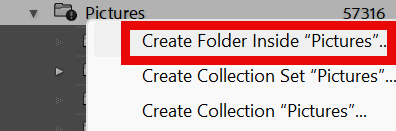
To add your selected folder to Lightroom, right-click on the master folder and select Create Folder Inside "Pictures". In this example I'm creating a folder inside the Pictures folder.
2. Name the Folder
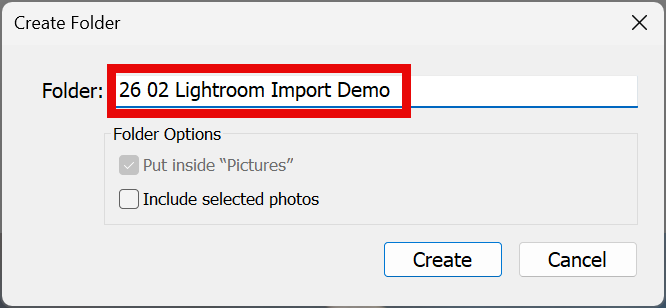
Enter the name of the folder. This must be identical to the original folder. Copying and pasting is a safe way to do this. If typing the name, take care to be precise.
Note that two items under this is an option to Import to this Folder... This takes you back into a more regular import workflow.
3. Select a Folder
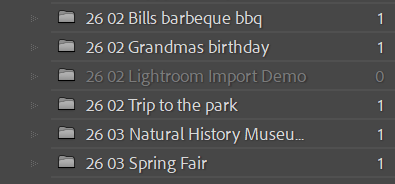
After adding your folder, scroll down the folders panel on the left of the screen, to find it. You will see that it is grayed-out and empty, showing zero photos.
4. Synchronize Folder
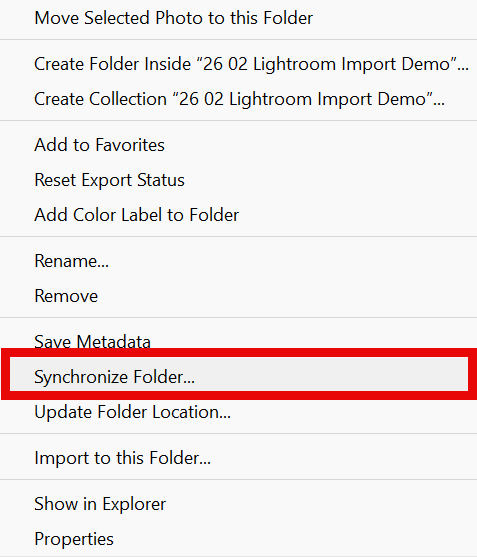
Right-click on the folder and select Synchronize Folder.
5. Photos to Import
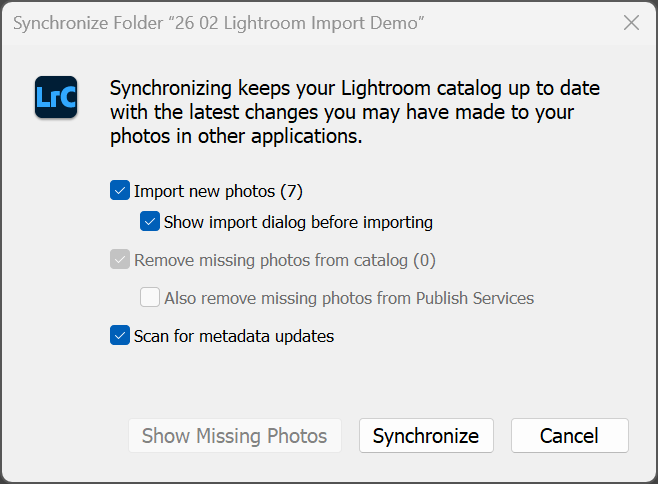
You will then see a screen showing how many photos will be imported. Click on Synchronize.
6. Imported Photos

If you have a lot of photos, it may take a little while, but you will then see your photos that have imported.
7. Show in Folder
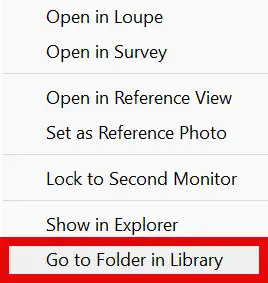
To view them in the folder, right-click on any photo and select Show in Folder.
This is a quick way to see the folder selected in the folders panel on the left of the screen. I use this a lot.
8. View Folder

Now you can see that the number of images are shown in the folder.
9. Summary
This method of importing photos into Lightroom is not the standard method, but it's quick and easy. It doesn't allow you to apply presets during import, so if you like to do that, then this isn't the workflow for you. Here is the regular workflow.
But it does avoid the thing that can trip people up, about multiple date subfolders being added, if you don't pay attention during a regular import, during the default By Date option, even if that wasn't the option you chose. Yes, you can avoid the date subfolders, but it's easy to overlook that.
