Page updated: 14 June 2026
Photoshop Toolbar and Tools
Every Toolbar tool and option explained
Photoshop includes a wide range of tools for selecting, retouching, drawing, measuring and navigating your images. The buttons below link to every tool on the toolbar, each with step-by-step guides for how to use each tool and all options detailed.
The Toolbar (also called the Tools Panel) contains all of Photoshop's tools. By default it's located on the left of the screen, but it can also be moved. It can be either one or two columns wide. Just click on the double chevron at the top, to switch between one and two columns.
Most buttons on the toolbar contain multiple tools. Only one tool is initially visible on each button, until you click and hold, then the other tool buttons become visible. The small triangle in the bottom right corner of a button indicates that there are also other tools sharing the button.
Preview of Interactive Toolbar PDF
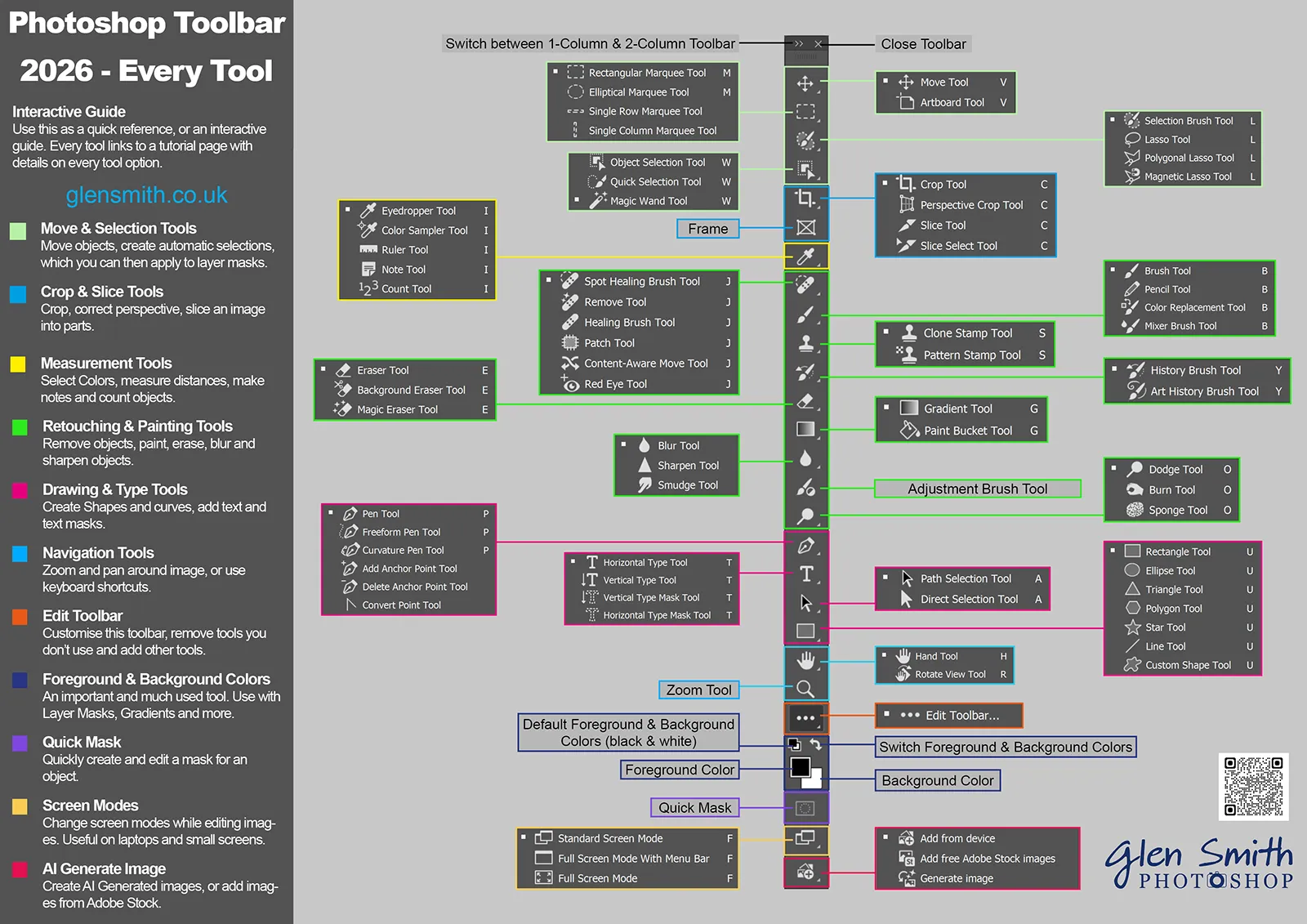
Download the Interactive Photoshop Toolbar 2026 PDF
I’ve created a clear visual reference showing every tool in the Photoshop 2026 toolbar. The image on this page is just a preview — you can click it to see a larger version, but it isn’t interactive.
To use the fully interactive version (where every tool links to its own guide), download the PDF above. It works offline and gives you direct access to all tool tutorials.
Below you’ll find a complete list of every Photoshop tool, grouped by category, with links to each tutorial page.
Tools are listed in the order they appear on the toolbar. The default tool is shown first, but note that the visible tool will be the last tool used.


